
DraftCheck Draft is the document drafting and redlining assistant you’ve always wanted.
What this tool does
Draft helps with all drafting stages…
Whether the beginning, where you just need help outlining things…
The middle, where you need to put some serious language down or you are making redlines or changes to stuff that has already been done…
Or the end, where you just need to clean things up.
Essentially, we accelerate content creation and edits for any document.
What can we draft?
The purpose of Draft is to draft any type of professional document you want.
What’s a professional document? Essentially any document that requires a material amount of information compilation and transfer, whether from other documents or knowledge in your head (ideally both).
For example:
- Legal Documents (contracts, motions, briefs)
- Policies, Manuals,
- Reports, Analysis, Research Papers
- Complex Professional Correspondence (Emails, Letters, etc.)
What if it’s a big project?:
- Create an outline or draft from a blank file.
- Modify/Redline an existing document, by section or as a whole document.
The Process:
- 1st, Tell us what you want to Draft.
- We’ll ask you step-by-step questions to understand everything.
- Then, we’ll analyze any documents you uploaded (DocX/PDF) for structure, language, or reference material.
- Then, we’ll draft or redline away.
Sounds awesome! How Do I Start?
- Open the document you want to work on (blank is fine).
- Click Start. The assistant will immediately begin analyzing your file.

If your document is blank
When the assistant detects a blank document, you’ll see two options:
- Create an outline: Builds a structured outline so you can refine your thought and process for larger, more complex documents that maybe need step by step or team collaboration on.
- Draft the full document: Generates a complete first draft that you can edit.

If you have an existing document to modify
When we detect an existing document, you’ll see four options:
- Draft from Outline: Once you have the outline exactly the way you want, we can draft the document from the outline.
- Continue Drafting: If you haven’t finished the document and just need to keep drafting, that’s what this is for.
- Review & Modify by Section: We will review and redline only the section you want, one at a time. Just place your cursor on what section you want to modify and we’ll redline that.
- Review & Modify Whole Document: This is a whole document redline. While a bit less specific because of the size of the document, we’ll work to get as close to possible for what you want as possible.

Guided questions (how we learn your intent)
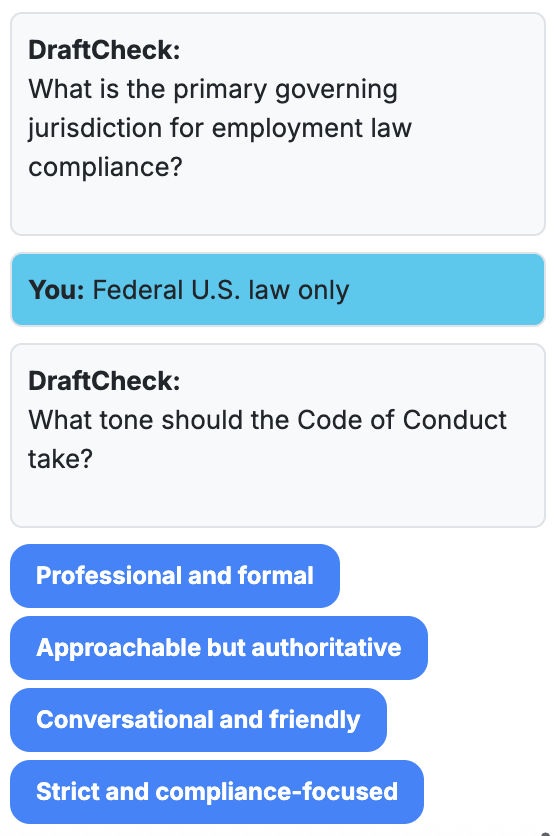
Once we’ve started, Draft will ask short, focused questions to understand exactly what you want done.
You can choose between:
- Detailed information gathering: A step-by-step process covering all relevant details for maximum accuracy.
- Essentials only: A short process limited to a few key questions. Less precise but much faster.
Examples of questions:
- “Who is the audience and what’s the tone?” (e.g., legal/precise, friendly/concise, formal)
- “Any must-include sections or clauses?”
- “Do you want us to follow a specific template or style guide?”
Use templates (DOCX/PDF)
You can upload templates to borrow structure, language, or style.
- Open the Manage Documents tab in the upper left of the panel.
- Choose the Document you Want to Upload (DocX or PDF)
- Select what we should use that document for (Form, Language, Reference)
- Click Upload.

Tips for best results
- Be specific in Q&A. Clear answers produce sharper drafts.
- Leverage templates. Consistency improves speed and quality.
- Iterate section by section. Smaller chunks = better control.
- Use refine mode. Perfect for polishing individual paragraphs.
Frequently asked questions
What happens if I skip questions?
We’ll use sensible defaults, but providing details improves accuracy.
Can I refine only part of a document?
Yes. Place your cursor in any paragraph and use Refine.
Can I mix multiple templates?
Yes. Upload several templates and select which elements to reuse from each. Just make sure to tell us when you upload it.
Does it work for non-legal docs (e.g., HR or Policy)?
Absolutely. The assistant adapts tone and structure to your chosen document type.
How do you handle privacy?
We never store your content longer than needed. It’s deleted either at the end of your session or 24 hours — whichever comes first. And we never use your content for anything other than providing the services to you.